- A GPG signing key is a key pair: the secret key stays in
~/.gnupgand signs your commits, the public key goes to GitHub and verifies them - GitHub shows Verified only when (1) the commit is signed, (2) the public key is registered, and (3) the key’s email matches a verified email on your account
- Point
user.signingkeyat the primary key’s 40-character fingerprint, not the email
brew install gnupg

# (9) ECC → (1) Curve 25519 → 1y
gpg --full-generate-key

# find the fingerprint
gpg --list-secret-keys --keyid-format LONG

# paste into GitHub → SSH and GPG keys
gpg --armor --export <FINGERPRINT>

git config --global user.signingkey <FINGERPRINT>
git config --global commit.gpgsign true
🎯 Goal
🔎 Objective
git config user.email is a free-text field. Anyone can set it to your address and push a commit that GitHub attributes to you. A signature fixes that: the commit carries proof that it was made by someone holding your secret key.
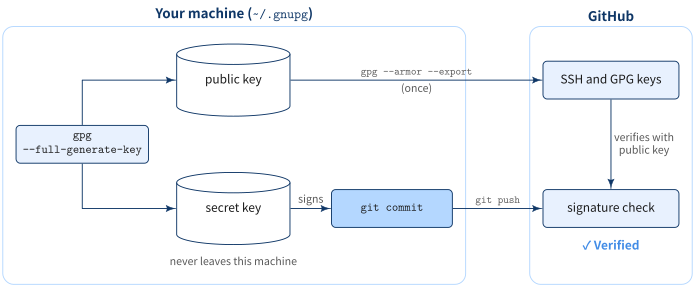
Only the public key ever leaves your machine. Never upload the secret key to GitHub.
What is a GPG signing key?
GPG (GnuPG) is the standard implementation of OpenPGP, a format for signing and encrypting data with public-key cryptography. A GPG signing key is an OpenPGP key pair whose job is to sign:
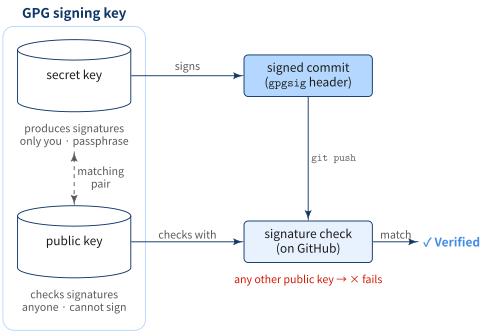
- Secret key: produces signatures. Only you have it, protected by a passphrase
- Public key: checks signatures. Anyone can have it; it cannot produce a signature
A signature made with the secret key verifies only against the matching public key. So when GitHub checks a commit against the public key on your account and the check passes, the commit was signed by whoever holds your secret key.
What gets signed
A commit is a small text object: tree, parents, author, committer, and message. With signing on, Git passes that text to gpg, and stores the signature it gets back in the commit itself, under a gpgsig header:
git cat-file -p HEADtree 9bc4a1...
parent 3f1e0d...
author Ryo Nakagami <ryo@example.com> 1793754000 +0900
committer Ryo Nakagami <ryo@example.com> 1793754000 +0900
gpgsig -----BEGIN PGP SIGNATURE-----
...
-----END PGP SIGNATURE-----
Add test.mdChange one byte of the author, message, or tree, and the signature no longer matches. That is why git commit --amend has to sign again, and why the commit ID changes.
Signing key vs SSH key / token
| SSH key / token | GPG signing key | |
|---|---|---|
| Proves | Who is pushing to GitHub | Who made the commit |
| Checked | Once per connection | On every commit, forever |
| Travels with the commit | No | Yes, inside the commit object |
A push credential lets you push anyone’s commits. A signature stays on each commit, so it still means something after the commit is pushed, fetched by someone else, or mirrored to another host.
How to set up a GPG signing key
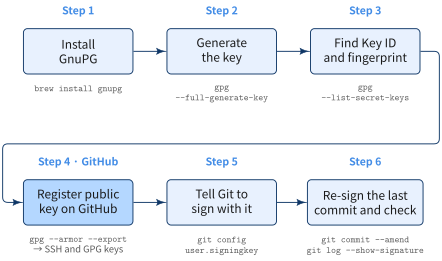
Step 1: install GnuPG
brew install gnupgStep 2: generate the key
gpg --full-generate-keygpg walks through several prompts. The first one picks the algorithm:
Please select what kind of key you want:
   (1) RSA and RSA
   (2) DSA and Elgamal
   (3) DSA (sign only)
   (4) RSA (sign only)
   (9) ECC (sign and encrypt) *default*
  (10) ECC (sign only)
  ...
Your selection? 9| Choice | What it creates | For commit signing |
|---|---|---|
| (1) RSA and RSA | RSA keys for signing and encryption | Works |
| (4) RSA (sign only) | RSA signing key only | Works |
| (9) ECC (sign and encrypt) | Elliptic-curve signing key + encryption subkey | Recommended (default) |
| (10) ECC (sign only) | Elliptic-curve signing key only | Enough if you only sign commits |
Next comes the curve:
Please select which elliptic curve you want:
   (1) Curve 25519 *default*
   (4) NIST P-384
   (6) Brainpool P-256
Your selection? 1| Choice | Curve | When to pick it |
|---|---|---|
| (1) | Curve 25519 | Fast, widely supported. Recommended |
| (4) | NIST P-384 | You must comply with NIST standards |
| (6) | Brainpool P-256 | You have a specific Brainpool requirement |
With (9) + (1) you get two keys: an Ed25519 primary key that signs commits, and a Cv25519 subkey for encryption. Pressing Enter at both prompts gives the same result.
The remaining prompts:
- Expiry:
1yis a reasonable default; you can extend it later withgpg --edit-key - Real name:
Ryo Nakagami - Email address: an email that is verified on your GitHub account (the
noreplyaddress works too) - Confirm with
O - Passphrase: protects the secret key on disk;
gpg-agentcaches the unlocked key after the first use (see the Appendix)
Where did gpg write the key?
Everything goes under the GnuPG home directory:
gpgconf --list-dirs homedir
# /Users/<you>/.gnupg
~/.gnupg/
├── pubring.kbx # public keys (yours and any you imported)
├── private-keys-v1.d/
│ └── <KEYGRIP>.key # secret keys, one file per key / subkey
├── openpgp-revocs.d/
│ └── <FINGERPRINT>.rev # revocation certificate, created automatically
└── trustdb.gpg # trust levels ([ultimate] for your own key)Back up private-keys-v1.d/ and the .rev file somewhere offline. The revocation certificate is what you publish if the secret key leaks.
Step 3: find the Key ID and fingerprint
gpg --list-secret-keys --keyid-format LONGsec ed25519/1234567890ABCDEF 2026-11-04 [SC] [expires: 2027-11-04]
ABCDEF1234567890ABCDEF1234567890ABCDEF12
uid [ultimate] Ryo Nakagami <ryo@example.com>
ssb cv25519/9876543210FEDCBA 2026-11-04 [E] [expires: 2027-11-04](Fictional values.) gpg --list-keys --keyid-format LONG prints the same layout with pub / sub for the public halves.
| Field | Example | Meaning |
|---|---|---|
sec |
ed25519/... |
Secret primary key |
ssb |
cv25519/... |
Secret subkey |
uid |
Ryo Nakagami <ryo@example.com> |
User ID: who owns the key |
| Key ID | 1234567890ABCDEF |
16 hex digits after the /; the last 64 bits of the fingerprint |
| Fingerprint | ABCDEF1234...EF12 |
40 hex digits on the line below sec; the full identifier |
[S] / [C] / [E] |
Signing / Certification / Encryption |
The primary key is [SC], so it is the one that signs commits. To print only the fingerprint:
gpg --fingerprint

# or, for scripts (one line per key, so the subkey's fingerprint shows up too)
gpg --list-secret-keys --with-colons | awk -F: '$1 == "fpr" {print $10}'
Step 4: register the public key on GitHub
gpg --armor --export <FINGERPRINT>-----BEGIN PGP PUBLIC KEY BLOCK-----
...
-----END PGP PUBLIC KEY BLOCK-----Copy the whole block, including the BEGIN / END lines, into GitHub → Settings → SSH and GPG keys → New GPG key.
Step 5: tell Git to sign with it
git config --global gpg.format openpgp
git config --global user.signingkey <FINGERPRINT>
git config --global commit.gpgsign true
user.signingkey also accepts the 16-digit Key ID, as in GitHub’s guide, but the fingerprint cannot collide with another key in your keyring.
The committer email must match the key’s uid, and GitHub must have it as a verified email:
git config --global user.name "Ryo Nakagami"
git config --global user.email "<YOUR_GITHUB_EMAIL>"
Check all four values at once:
git config --global --get gpg.format        # openpgp
git config --global --get user.signingkey   # <FINGERPRINT>
git config --global --get commit.gpgsign    # true
git config --global --get user.email # same email as the key's uiderror: gpg failed to sign the data
gpg needs a terminal to ask for the passphrase. If git commit fails with this error, tell gpg which TTY to use and add the line to ~/.zshrc:
export GPG_TTY=$(tty)Step 6: re-sign the last commit and check it
A commit made before this setup has no signature, and possibly the wrong author email. Rewrite it with the current config:
git commit --amend --reset-author --no-edit--reset-author takes the author from the current user.name / user.email, and because commit.gpgsign is true, the new commit is signed.
--amend changes the commit ID
The amended commit is a new object. Don’t run this on a commit that is already pushed to a shared branch.
Check the author, committer, and signature:
git log -1 --format=fuller
git log -1 --show-signature
gpg: Signature made Wed Nov 4 10:00:00 2026 JST
gpg: using EDDSA key ABCDEF1234567890ABCDEF1234567890ABCDEF12
gpg: Good signature from "Ryo Nakagami <ryo@example.com>" [ultimate]Good signature means the local check passed. After git push, GitHub shows Verified next to the commit once it matches the public key you registered in Step 4.
Appendix: Why does gpg ask for the passphrase only once?
The passphrase is for signing, not for verifying. The secret key sits encrypted in ~/.gnupg/private-keys-v1.d/, and each signature needs the decrypted key. Verifying (on GitHub or with git log --show-signature) uses only the public key, so it never asks.
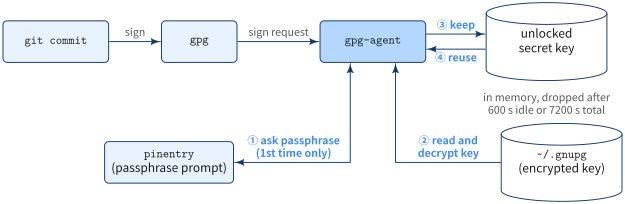
You type the passphrase once because gpg does not sign by itself. It hands the work to gpg-agent, a background process that keeps the decrypted key in memory for a while.
First commit
git commitrunsgpg, andgpgasksgpg-agentto signgpg-agenthas no unlocked key, so it openspinentryand asks for the passphrase (①)- It reads the encrypted key from
~/.gnupgand decrypts it with the passphrase (②) - It signs, and keeps the unlocked key in memory (③)
Next commits
gpg-agent signs with the key it already holds (④). No prompt, no disk read.
How long “once” lasts
The cache has two timers, set in ~/.gnupg/gpg-agent.conf:
# seconds since the key was last used; every use resets it (default: 10 minutes)
default-cache-ttl 600

# seconds since the passphrase was entered; using the key does not extend it (default: 2 hours)
max-cache-ttl 7200
Either timer running out drops the key, and the next commit asks again. So “once” means once per cache window: after 10 minutes without a commit, or 2 hours after you typed it.
# reload after editing gpg-agent.conf
gpgconf --reload gpg-agent

# drop the cached key now; the next signature asks again
gpgconf --kill gpg-agentWith pinentry-mac, the prompt has a Save in Keychain checkbox. Once checked, pinentry-mac answers from the Keychain and you are not asked even after the cache expires.
brew install pinentry-mac
echo "pinentry-program $(brew --prefix)/bin/pinentry-mac" >> ~/.gnupg/gpg-agent.conf
gpgconf --kill gpg-agent